A little more room to think.
Teaching boards, a calmer desk, and your work within reach—even offline.
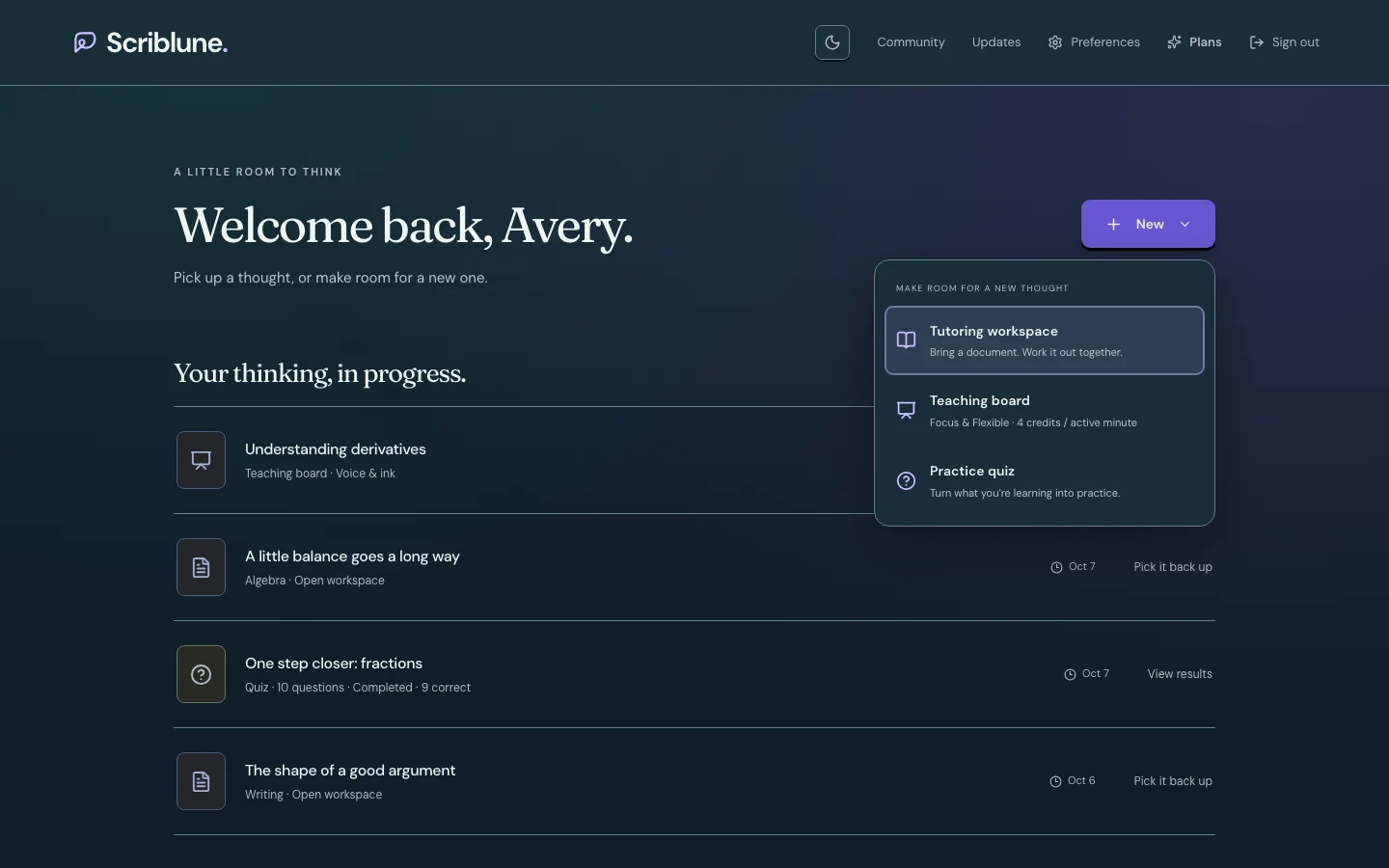
A board for thinking out loud
Teaching boards give a conversation room to unfold. Use your microphone to talk with the AI teacher, follow its drawing, and add your own ink to an open canvas. Pan, zoom, erase, undo, and come back to a saved board from your desk.
Create one from + New → Teaching board. Teaching boards are exclusive to Focus and Flexible. Creating a board uses 1 new session, and voice teaching uses 4 credits per active minute, reserved one minute at a time. Pausing keeps unused seconds on that board. Free and Plus do not include teaching boards; saved boards stay stored and unlock with an eligible plan. You can keep drawing while the teacher is paused.
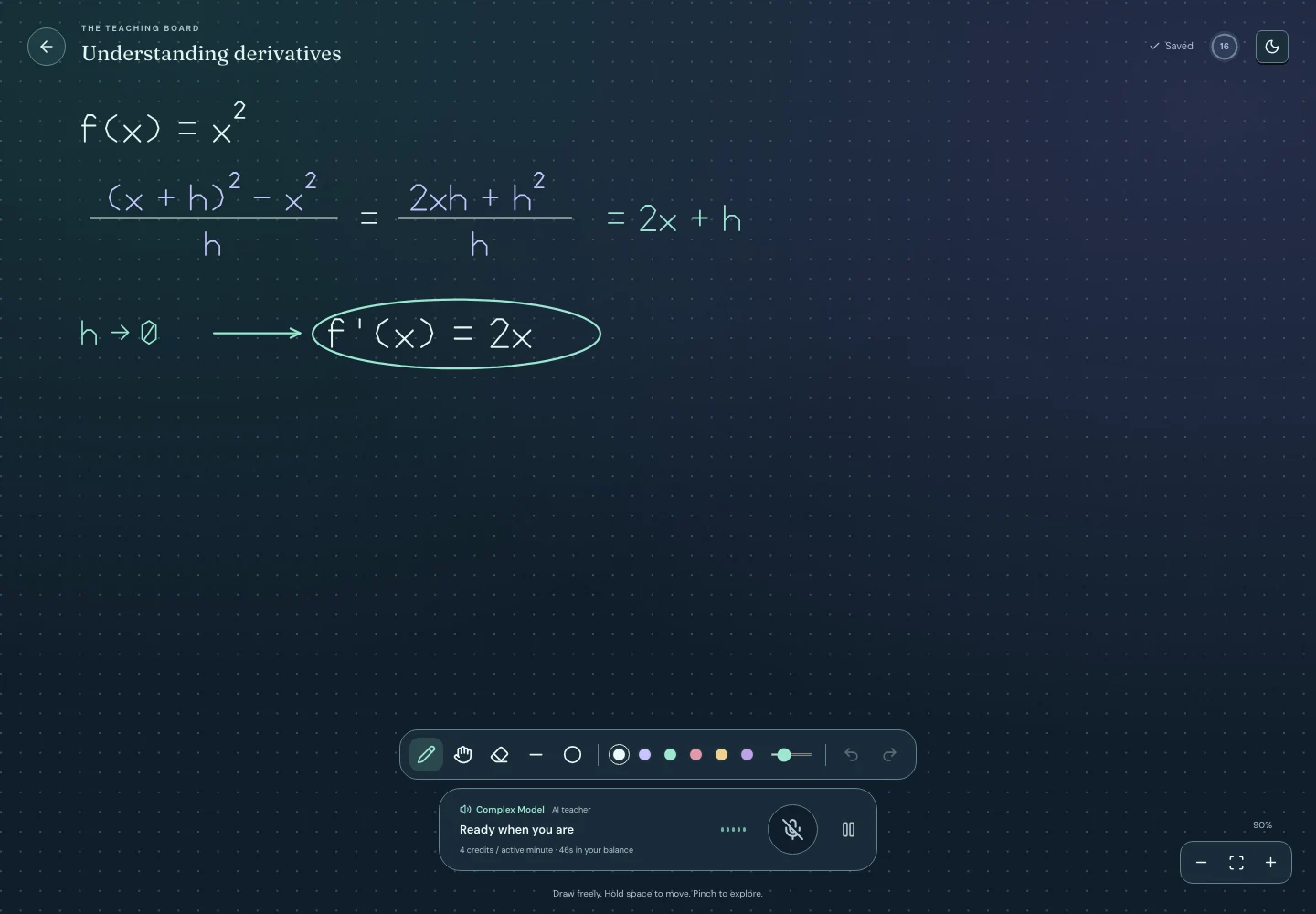
Example study content on a teaching board.
One small menu. Three ways to begin.
The desk’s separate creation buttons now live in + New:
- Tutoring workspace: upload a document, annotate it, and work through it with your tutor.
- Teaching board: explore an idea with voice and a shared canvas on Focus or Flexible.
- Practice quiz: turn a topic or workspace into questions. Available with eligible plans.
We removed the extra teaching-board explanation from the desk so your saved work has more room.
Your desk, even without a connection
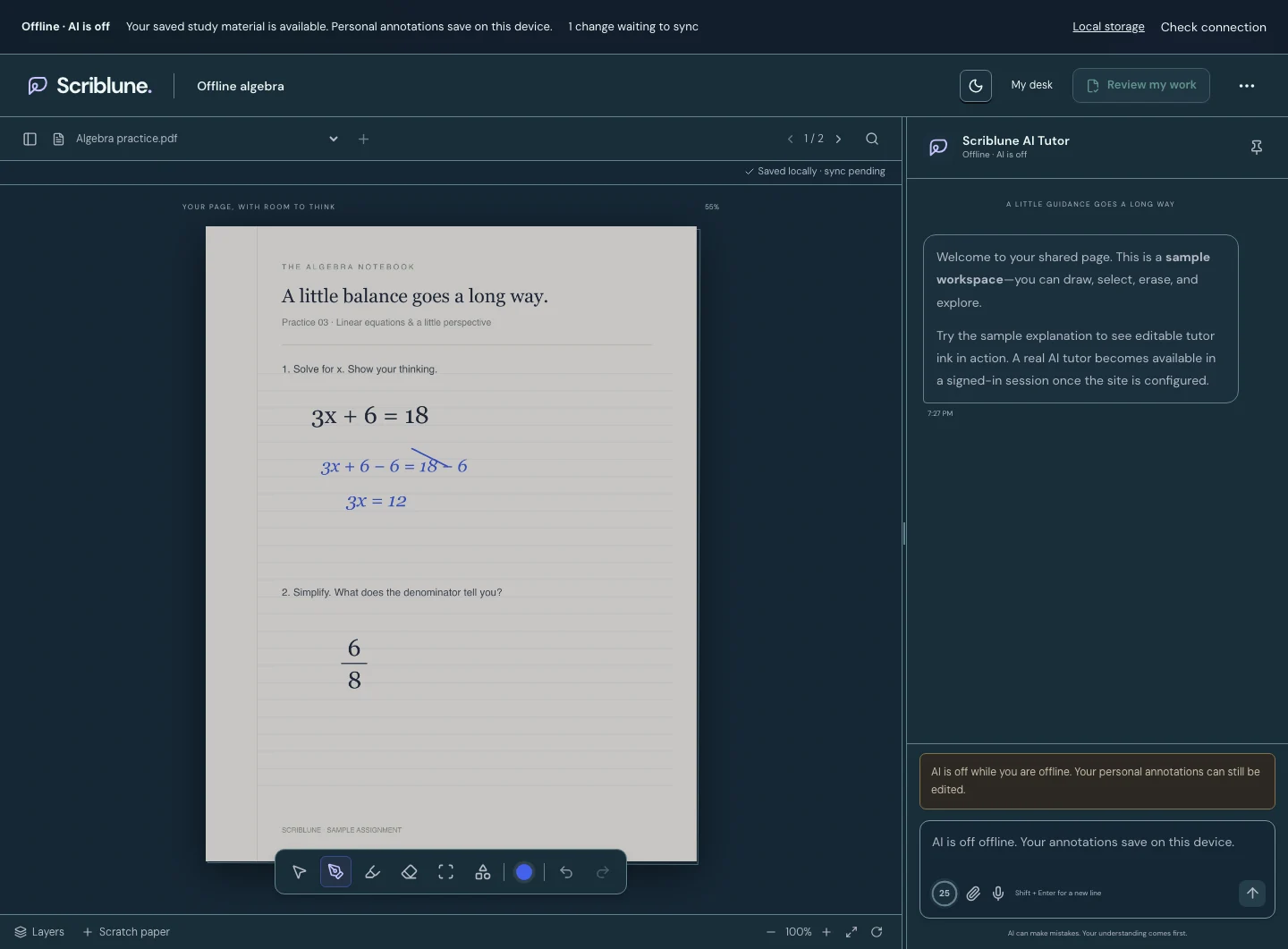
In Account → Take your desk offline, turn on automatic local saving on a device you trust. Let the download finish while you’re online. Your saved desk, downloaded documents, workspaces, boards, and quizzes can then open when your connection drops.
- The offline banner makes it clear when AI is unavailable and when you’re looking at saved information.
- You can keep annotating your own workspaces and drawing on your own boards offline. Other account actions and quiz answers are read-only.
- When you reconnect, pending annotations sync with your online work. Conflicting changes are preserved as separate copies, so one version doesn’t silently overwrite another.
- You can download a backup of your local copy from Account. Browser storage is device-specific; keep a backup of work you need to retain.
Support, on your terms
When you need help with study work, a Customer Support representative can ask to open your desk. The request includes a reason and a time limit. You can inspect it above your desk, approve or deny it, and end access.
Approval applies only to the representative who asked and expires at the agreed time. Other representatives need their own approval.
A more connected look
Aurora now flows through the desk instead of stopping at opaque list rows. Menus, panels, and borders use the same theme palette, and your appearance choice stays more consistent as you move around the site.
We also adjusted navigation wrapping, form spacing, and inline text, and refined the existing ad placements across eligible pages.
A home for what’s new
Updates now sits beside Community. Release notes support Markdown, embedded images and videos, and downloadable attachments. A short introduction on your desk highlights each new release; dismiss it once per account on this browser and revisit the full notes whenever you like.